
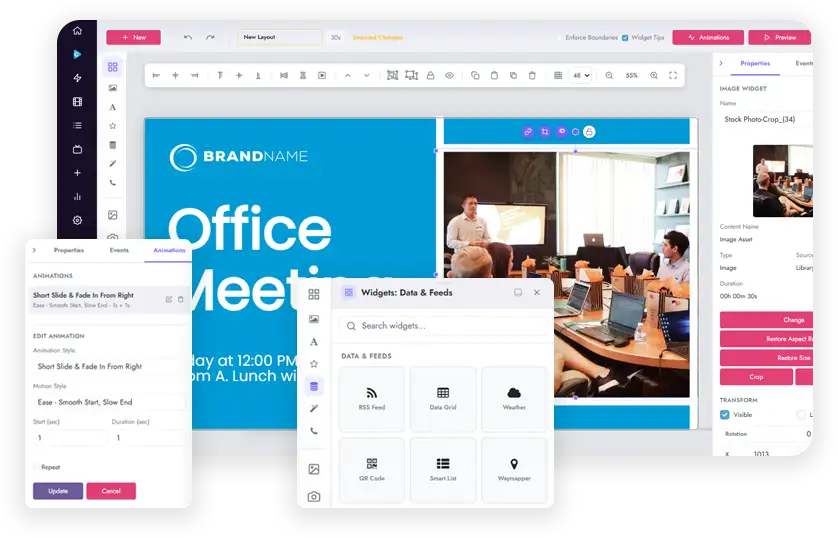
Build once. Deploy everywhere.
Create professional content faster, then reuse and standardize layouts across customer accounts for easier deployments.
- Speed up content creation
- Standardize customer layouts
- Simplify deployments
Everything you need to design better.
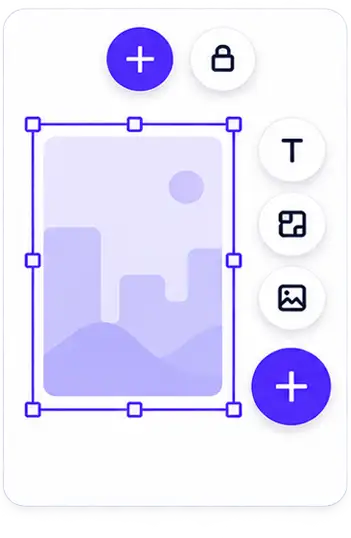
Floating Action Buttons
Quickly access common editing and formatting controls directly from the canvas.
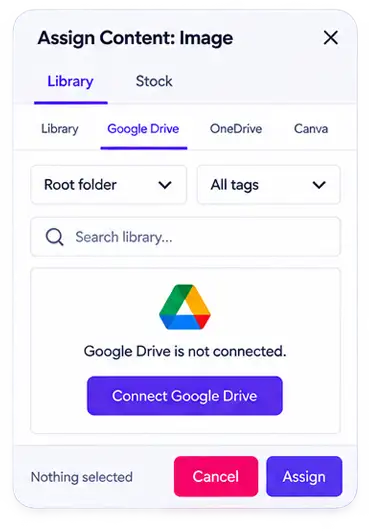
Cloud Media Navigation
Browse and assign content from your Library, Google Drive, OneDrive, and Canva without leaving the designer.
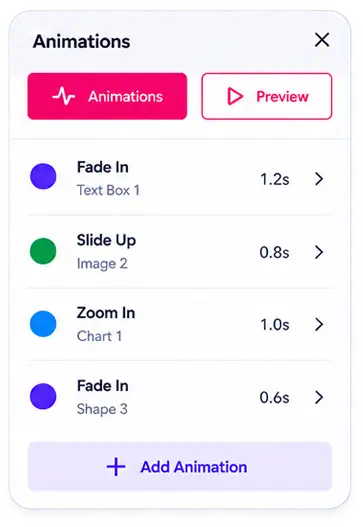
Animations Overview
Manage animations directly in the Layout Designer for a faster, more organized editing workflow.
Design once. Reuse anywhere.
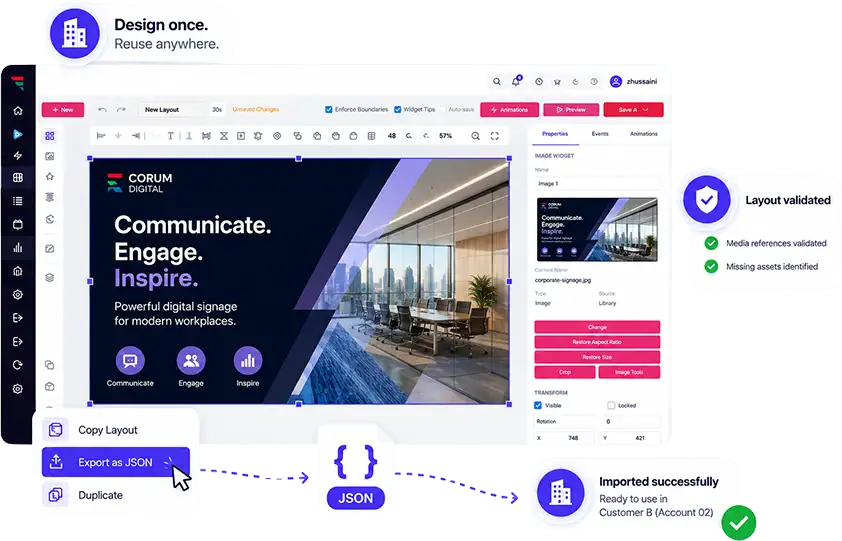
Move layouts between accounts and instances by copying and pasting them as JSON. firmChannel automatically validates media references and provides placeholders when assets are missing.
This is especially useful for resellers and partners standardizing layouts across multiple customer accounts.
Experiment without starting over.
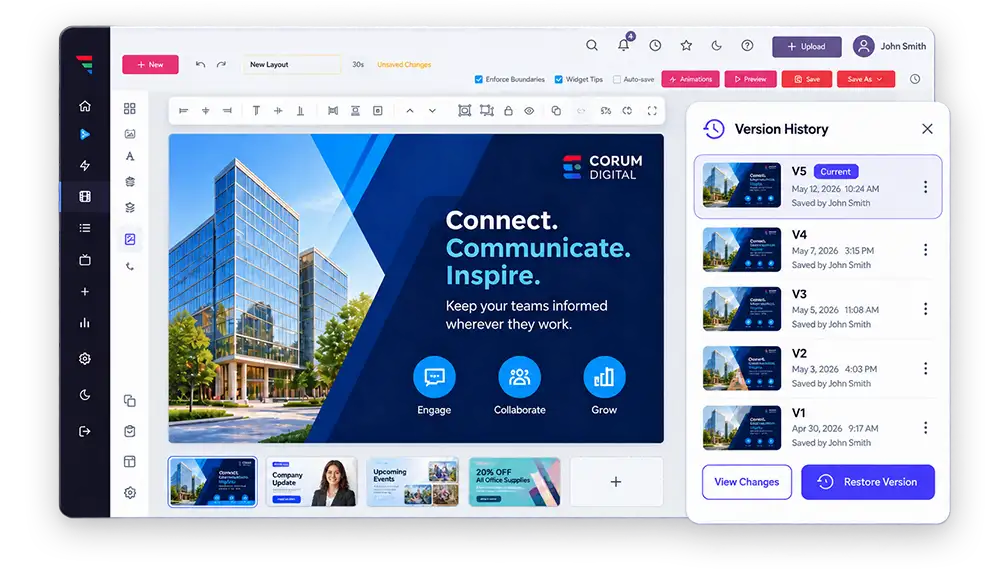
Explore new ideas and make changes with confidence. Version Tracking lets you return to previously saved versions of your layout whenever you need to.
Try new ideas
Make design changes without losing your previous work.
Return to saved versions
Revert to a previously saved version of your layout whenever you need to.
Refine with confidence
Keep experimenting until the layout feels right.
Learn more about the Layout Designer
What is the Layout Designer?
The Layout Designer is where you build the content that plays on screen. You place and style widgets on a canvas, pull in media, add animations, and save the result as a layout you can deploy to any player on any customer account.
Can I reuse a layout across customer accounts?
Yes. Layouts move between accounts and instances by copying and pasting them as JSON, which is how resellers and partners standardize a look across multiple customers without rebuilding the same layout each time.
What happens if media is missing when I move a layout?
firmChannel validates media references as the layout comes in and drops a placeholder wherever an asset is not available in the destination account. The structure and styling stay intact, so you only need to swap the placeholders for the right assets.
Can I go back to an earlier version of a layout?
Yes. Version Tracking keeps your previously saved versions, so you can experiment freely and restore an earlier version whenever a change does not work out.
Where can I pull content from while designing?
Cloud media navigation lets you browse and assign content from your firmChannel Library, Google Drive, OneDrive, and Canva without leaving the designer.
How do I get access to the Layout Designer?
The Layout Designer is part of firmChannel V9. Reach out through the Get Started link or book a demo and our team will walk your team through it.
Other V9 Features
 firmChannel V9
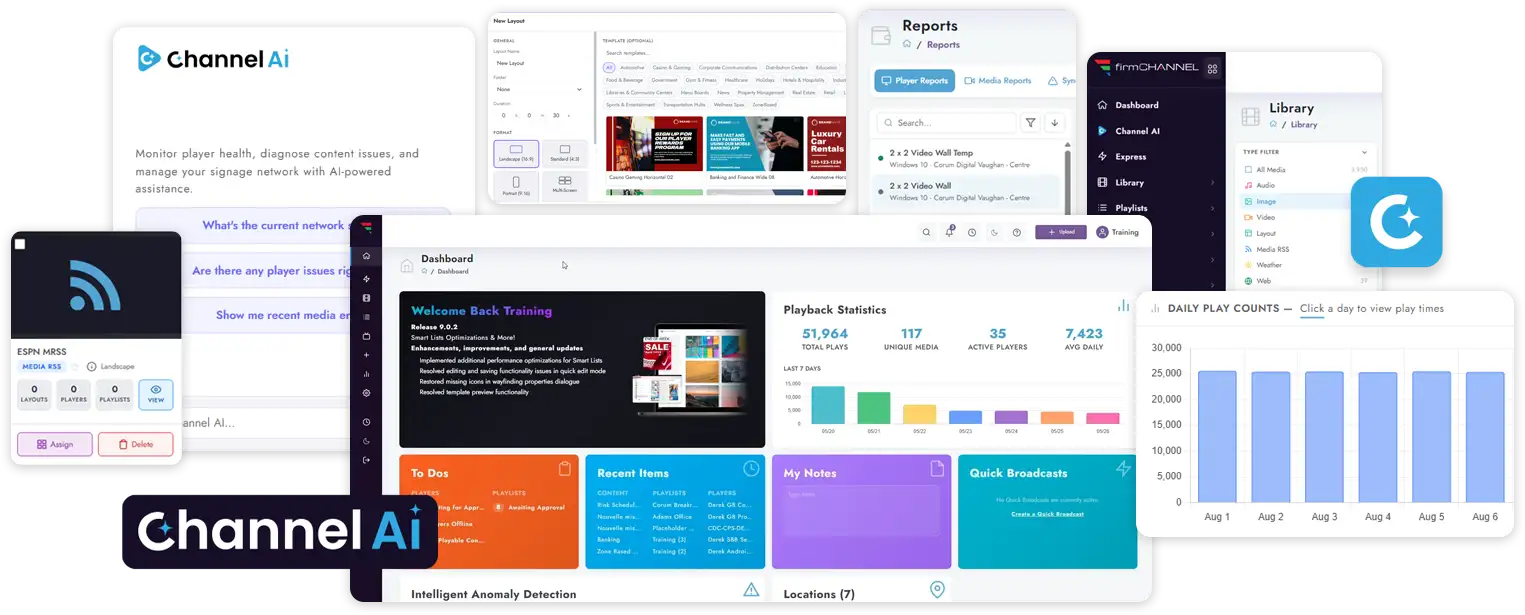
The full V9 release, built to scale for resellers.
firmChannel V9
The full V9 release, built to scale for resellers.
 V9 Experience
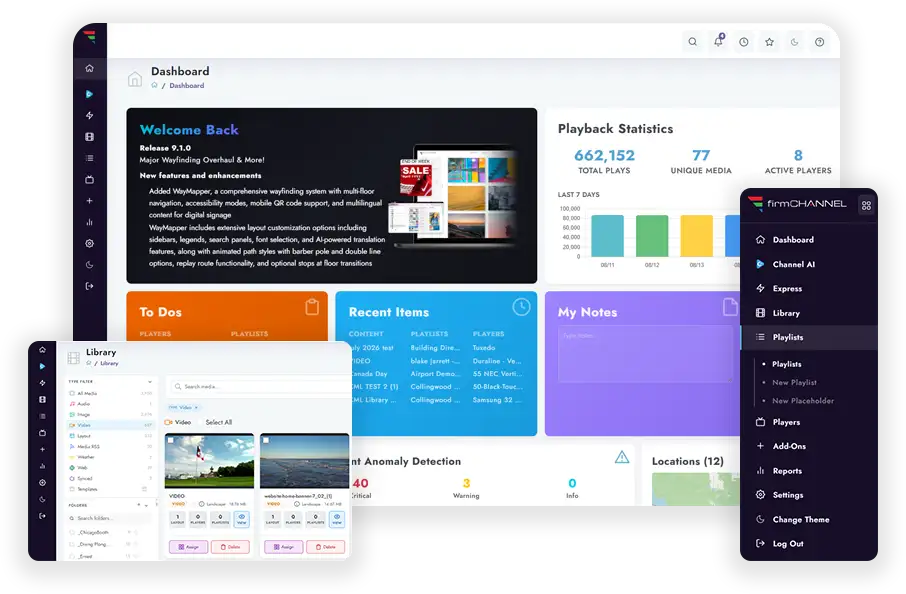
One consistent interface across every module.
V9 Experience
One consistent interface across every module.
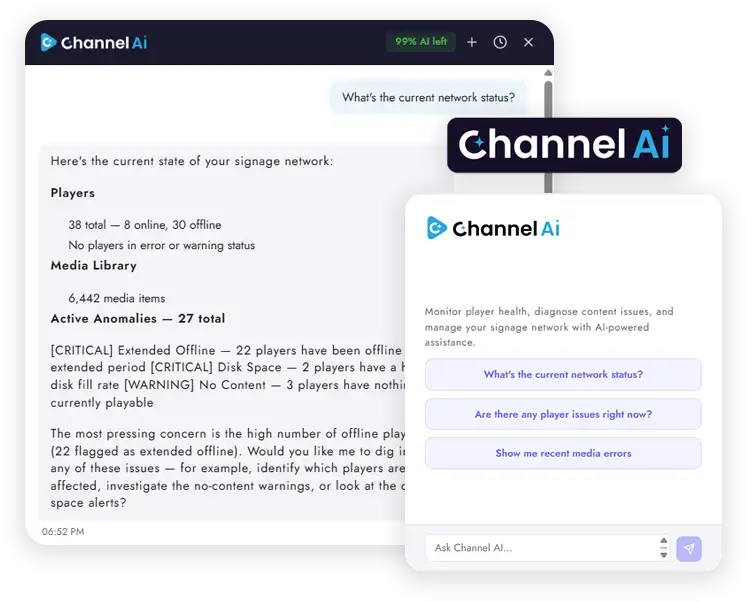 Channel AI
Manage customer networks in plain language.
Channel AI
Manage customer networks in plain language.
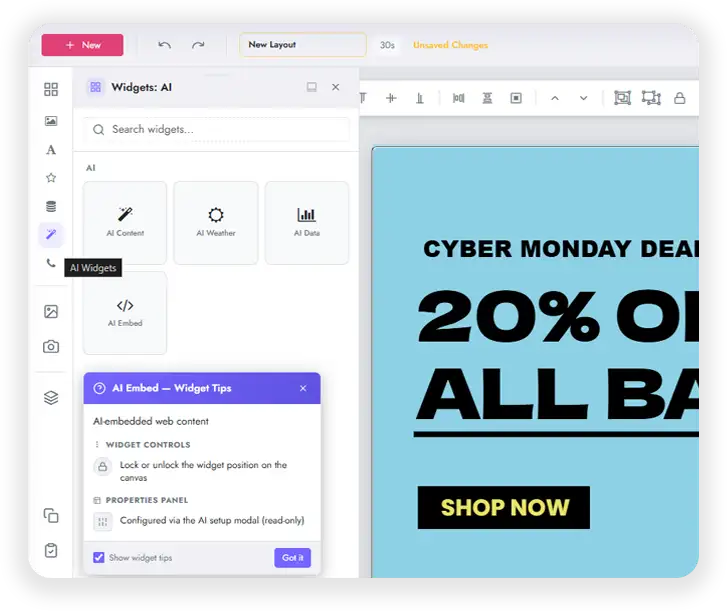 AI Widgets
Turn a prompt into layouts, weather, and live data.
AI Widgets
Turn a prompt into layouts, weather, and live data.
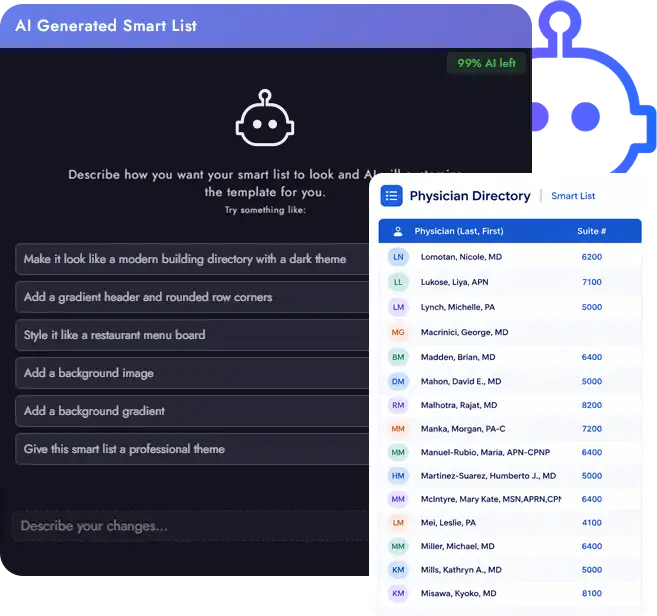 AI Smart List Stylizer
Restyle Smart Lists to match every brand.
AI Smart List Stylizer
Restyle Smart Lists to match every brand.
Ready to build once and deploy everywhere?
See how the firmChannel V9 Layout Designer helps your team create professional content faster and roll the same polished layouts out across every customer account.